What Is an EPG? How the IPTV TV Guide Works and How to Fix It
What an EPG (electronic programme guide) is, how IPTV players load XMLTV guide data, how to set it up, and how to fix an empty guide, wrong times and missing listings.
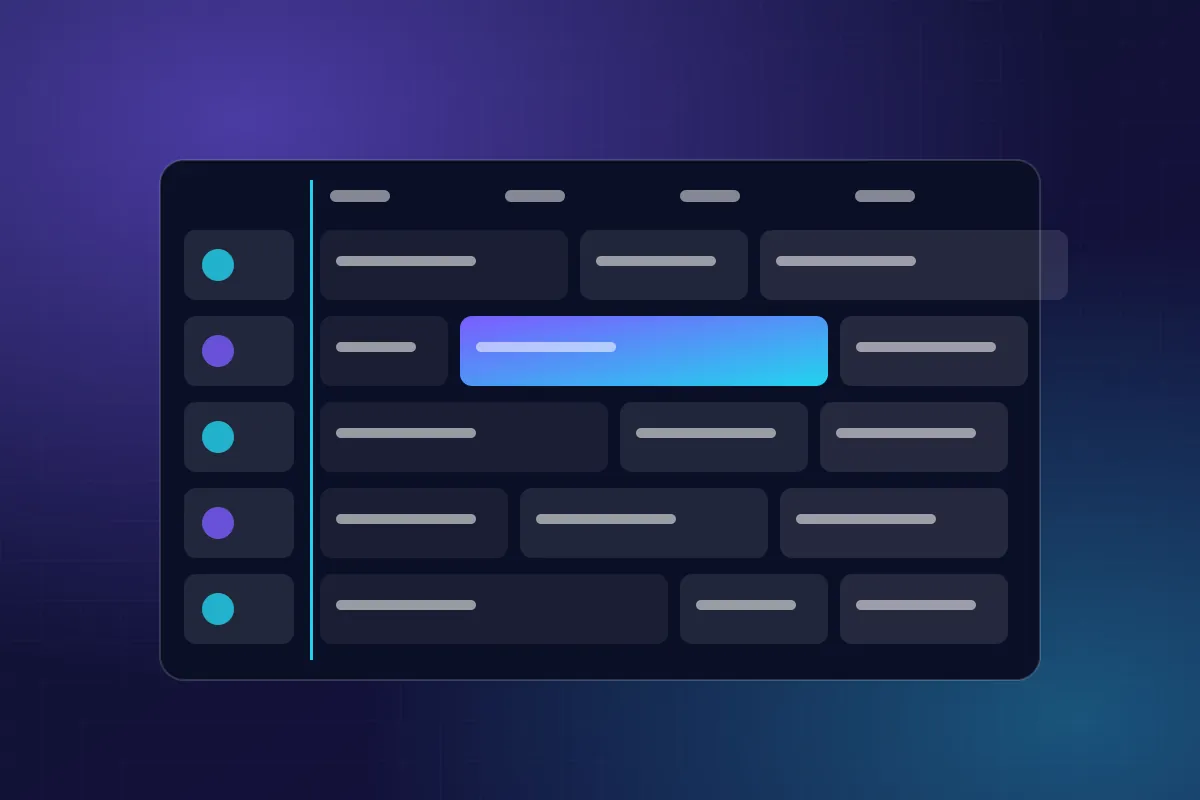
An electronic programme guide, or EPG, is the on-screen TV schedule that shows what is on now, what is on next and what is coming up later on each channel. If you have used a cable or satellite box, you have used an EPG. On IPTV it plays the same role, and it is the feature that turns a long list of channel names into something that feels like proper television.
Yet the EPG is also one of the most confusing parts of IPTV for new users. Sometimes it is empty, sometimes the times are an hour out, and sometimes a channel shows the wrong programme entirely. Almost all of these problems have simple explanations and simple fixes once you understand how guide data actually reaches your player.
This guide explains what an EPG is, how IPTV players load guide data, how to set it up, how to fix the most common EPG problems and how to get the most out of it day to day. Every ProtoIPTV plan includes an EPG, so the setup sections also show what to expect with our service.
What an EPG is and what it shows
At its simplest, an EPG is a timetable for your channels. It combines the channel list with schedule information so you can see programmes rather than just stations.
The information in a typical guide
A well-populated EPG entry usually includes:
- Programme title, such as the name of a match, film or episode.
- Start and end times, shown in your local time zone.
- A short description of the programme.
- Episode or season information for series, where available.
- A category or genre, such as sport, news or film.
- A progress indicator showing how far through the current programme you are.
How much of this appears depends on the guide data available for each channel and on how your player displays it.
EPG versus the channel list
It helps to separate two things that look similar inside a player:
- The channel list is the set of streams you can watch, grouped into categories. It comes from your login details.
- The EPG is the schedule information attached to those channels. It is separate data that the player downloads and then matches to each channel.
This distinction explains most EPG problems. A channel can play perfectly while its guide is empty, because the stream and the schedule come from different places.
Why the EPG matters
Without a guide, finding something to watch means opening channels one by one. With a guide, you can scan what is on across a whole category, spot a match starting in ten minutes, or see that a film you want begins at nine. For live sport in particular, the EPG is how you find the right channel at the right time.
The guide also changes how a household uses its subscription. Instead of everyone defaulting to the same few channels, people discover documentaries, international channels and films they would never have found by scrolling. A working guide makes a large line-up genuinely usable.
From printed listings to IPTV guides
TV schedules have always existed in some form. For decades, viewers relied on printed listings in newspapers and magazines, then on text-based information services on the TV itself. Digital cable and satellite boxes brought the first widely used on-screen guides, built from schedule information carried inside the broadcast signal.
IPTV guides keep the familiar on-screen experience but change where the information comes from. Instead of arriving inside a broadcast signal, the schedule is downloaded over the internet, which is why its setup and its problems look a little different.
How an IPTV guide differs from a broadcast guide
| Broadcast TV guide | IPTV guide (EPG) | |
|---|---|---|
| Where the data comes from | Carried inside the TV signal | Downloaded over the internet as a separate file or feed |
| How it reaches your screen | Built into the set-top box | Loaded by your IPTV player app |
| How it links to channels | Tied to each broadcast channel | Matched to channels using identifiers |
| How it updates | Continuously with the signal | On a refresh schedule set by the player |
| How you customise it | Limited to the box’s menus | Depends on the player: favourites, categories, offsets, refresh |
The practical takeaway is that an IPTV guide has more moving parts: the guide data, the matching between guide and channels, and the player that displays it. When something goes wrong, one of those three is usually responsible.
How IPTV players get guide data
Traditional TV broadcasts carry guide information alongside the signal. IPTV works differently: the player downloads the schedule over the internet as a separate file or data feed, then matches it to your channels.
The XMLTV format
Most IPTV guide data uses a format called XMLTV. It is a structured text file with two main parts: a list of channels and a list of programmes. The table below shows the main elements and what they do.
| XMLTV element | What it contains | Why it matters |
|---|---|---|
| channel | A channel identifier and its display name | The identifier is what links the schedule to a stream |
| programme | Start time, end time and the channel it belongs to | Places each programme on the timeline |
| title | The programme name | What you see in the guide |
| desc | A short description | Shown when you highlight a programme |
| category | Genre, such as sport or news | Used by some players for filtering |
You never need to open this file yourself, but knowing that it exists, and that it is separate from your channel list, makes troubleshooting much easier.
Matching guide data to channels
For each channel in your list, the player looks for a matching identifier in the guide data. In M3U playlists, this identifier is usually stored in a field called tvg-id on each channel entry. When the identifier in the playlist matches the identifier in the guide, the schedule appears next to the channel. When they do not match, the channel plays but its guide stays empty or, occasionally, shows another channel’s schedule.
How guide data arrives with each login type
The way your player gets guide data depends on how you signed in:
- Xtream Codes login. The server address, username and password usually give the player access to the guide data as well as the channels. Most players load it automatically after the first sign-in.
- M3U playlist link. Some playlists include a reference to the guide data in their header, which many players pick up automatically. Others need a separate EPG link entered in the player’s settings. If your guide is empty after signing in with an M3U link, ask support whether a separate EPG link applies to your subscription.
- MAG portal. MAG boxes load the guide through the portal, so it appears in the box’s built-in TV guide once the portal is set up.
Our explainer on M3U vs Xtream Codes covers the login types in more depth.
How often guide data updates
Guide data covers a set number of days ahead and is refreshed regularly. Players download it when you first sign in and then update it on a schedule, often once a day. Many players let you choose how often the guide refreshes and let you trigger an update manually. If the guide seems to run out after a day or two, a refresh usually brings it up to date.
Reading the guide: common layouts
Players present the same guide data in different ways. Knowing the main layouts helps you find your way around any player.
The grid guide
The classic layout shows channels down the left and time across the top, with programmes as blocks along each row. It is the best view for planning an evening or seeing what is on across a whole category.
Now and next
Many players show the current and following programme alongside the channel list or as a banner when you change channel. It is the quickest way to decide what to watch without opening the full guide.
Single-channel schedule
Highlighting a channel and opening its details often shows its schedule for the coming hours or days. This is useful for checking when a particular programme or match starts on a channel you already know.
A worked example: finding a live match
Here is how the guide helps in practice. Say a football match kicks off at eight in the evening and you are not sure which sports channel is showing it.
- Open the guide and filter to the sports category, so you only see sports channels.
- Scroll the timeline forward to eight o’clock.
- Scan the programme titles for the match. If your player supports search, type the name of one of the teams instead.
- Highlight the programme to read its description and confirm the start time.
- If your player supports reminders, set one so you are notified when it begins.
- Add the channel to your favourites if you watch that competition regularly.
Without a guide, the same task means opening each sports channel in turn and hoping to catch an on-screen caption. With a working guide, it takes a few seconds.
Channels in more than one quality
Some line-ups include the same channel in more than one version, for example an HD version and a 4K version. These versions often share the same guide data, so their listings look identical. Choose the version that suits your device and connection: a 4K version needs a 4K-capable device and screen, and ProtoIPTV recommends a connection of 30 Mbps or more per stream for 4K. If a 4K version buffers on your setup, the HD version will usually play smoothly with exactly the same programme. Our guide to fixing IPTV buffering explains how to improve your connection.
Setting up the EPG with ProtoIPTV
Every ProtoIPTV plan includes an EPG. In most cases it works automatically, but it is worth checking a few settings after your first sign-in.
After your first sign-in
- Sign in to your player with the login details ProtoIPTV sent you. Our installation guides show how on each device.
- Let the channel list load completely before opening the guide.
- Give the player a few minutes to download the guide data. On the first sign-in this can take a little longer than the channel list.
- Open the guide and check that programmes appear against your regular channels.
Check your time zone
The guide shows programme times converted to your local time. Make sure the device itself is set to the correct time zone and has the correct time. Many guide timing problems are actually device clock problems.
Set a refresh interval
If your player lets you choose how often the guide updates, a daily refresh is a sensible default. If you leave the device off for long periods, refresh the guide manually when you turn it back on.
If you signed in with an M3U link
If the guide stays empty after signing in with an M3U link, check whether your player has a field for an EPG or XMLTV link in its playlist settings. Ask ProtoIPTV support on WhatsApp whether a separate guide link applies to your subscription, and they will tell you what to enter.
Common EPG problems and how to fix them
Most EPG problems fall into a few patterns. Work through the one that matches what you see.
The guide is completely empty
This is the most common issue after a first sign-in.
- Wait a few minutes. Guide data often downloads after the channel list.
- Look for an option such as “update EPG”, “refresh guide” or “reload EPG” in the player settings and run it.
- If you used an M3U link, check whether the player needs a separate EPG link.
- Restart the player and, if needed, the device.
- If it is still empty, contact support with the name of your player app.
Programme times are shifted by an hour or more
When the guide shows the right programmes at the wrong times, the cause is almost always a time zone mismatch.
- Check that the device’s time zone and clock are correct.
- Look for an EPG time offset or time shift setting in the player, and adjust it in one-hour steps until the guide matches what is actually on.
- After the clocks change for daylight saving, recheck the offset, as some players need adjusting.
Some channels have listings and others do not
Not every channel has guide data available, and occasionally a channel’s identifier does not match the guide data. If a channel you watch often has no listings, tell support which channel it is. They can check whether data exists for it.
A channel shows the wrong programmes
If a channel displays another channel’s schedule, the identifiers have been matched incorrectly. Some players let you manually assign a guide entry to a channel, which fixes it on your device. Reporting it to support is also helpful, as the mapping may need correcting.
The guide only covers a short period
If the guide runs out after a day or so, it has not refreshed recently. Trigger a manual update and check that automatic refresh is enabled.
The guide loads slowly or the player freezes
Guide data for many channels can be large, and weaker devices sometimes struggle to process it. Clearing the player’s cache, freeing storage on the device, or reducing how many days of guide data the player downloads, where that option exists, all help. A more capable streaming device also processes the guide more quickly.
Strange characters appear in titles or descriptions
Garbled accents or symbols usually mean the player is reading the guide with the wrong text encoding. Updating the player often fixes it; some players also include an encoding option in their settings.
A quick EPG troubleshooting checklist
If you are not sure which of the problems above you have, work through this list in order:
- Wait a few minutes after signing in, then open the guide again.
- Run a manual guide refresh in the player settings.
- Check the device’s time zone, date and time.
- Adjust the player’s EPG time offset if times are consistently wrong by the same amount.
- Check whether your login type needs a separate EPG link.
- Clear the player’s cache and restart the device.
- Update the player app to the latest version.
- Note the affected channels and the player you use, and contact support.
Features built on the EPG
Several useful features depend on the guide being set up correctly.
Reminders
Some players let you set a reminder on a future programme from the guide, so you get a notification when it starts. This is particularly handy for live sport.
Recording
Some player apps can record programmes to the device’s storage, scheduled from the guide. Whether this is available depends on the player and the device, and recordings use storage space.
Catch-up and archive
Some IPTV services offer catch-up on selected channels, letting you go back to programmes that have already aired from within the guide. Availability depends on the provider and the channel, so check with your provider rather than assuming it is included — our FAQ lists what ProtoIPTV plans include.
Search
Many players let you search the guide by programme name, which is often faster than scrolling when you know what you want to watch but not which channel it is on.
Getting the most out of your guide
A few habits make the EPG far more useful:
- Use favourites. Add the channels you watch most to a favourites list so the guide opens on them rather than on the full line-up.
- Browse by category. Use the guide’s category filters to see only sport, news or film channels.
- Check the guide before the big event. For important matches, confirm the channel and start time in the guide earlier in the day.
- Refresh after long breaks. If the device has been off for days, refresh the guide before relying on it.
- Keep the device clock right. Most timing issues start with an incorrect clock or time zone.
The EPG on different devices
The guide experience varies slightly by device.
Fire TV and Android TV
Player apps on these devices usually offer full grid guides, favourites and refresh options. If the guide is slow, clearing the app’s cache and freeing storage helps. See the Fire TV Stick guide and Android TV guide.
Samsung and LG Smart TVs
Guide features depend heavily on the player app available for your TV model. Players activated through a website sometimes have guide settings on that website rather than on the TV. Our Samsung and LG guides explain both activation types.
Apple TV, iPhone and iPad
Players on Apple devices generally load the guide automatically after sign-in, with now-and-next information and full schedules.
MAG set-top boxes
MAG boxes have a built-in TV guide that uses the guide data supplied through the portal, so there is usually nothing extra to set up. If the guide is empty, restarting the portal often fixes it. See the MAG guide.
Computers
Dedicated IPTV players on Windows and Mac show full guides. General media players such as VLC on Windows or Mac can play an M3U playlist but offer little or no guide support, so a dedicated player is better if you rely on the EPG.
Choosing a player with a good guide
Because the guide is displayed by your player app, two people on the same subscription can have very different guide experiences. If the EPG matters to you, these are the player features worth looking for:
- A full grid view. Channels down one side, time across the top, with smooth scrolling in both directions.
- Category filtering inside the guide. So you can view only sports or only news without leaving the guide.
- Favourites that carry into the guide. Your favourite channels should appear first or have their own guide view.
- A time offset setting. Essential for correcting time zone differences without changing the device clock.
- Manual and scheduled refresh. So you can update the guide on demand and control how often it updates automatically.
- Search. Finding a programme by name is often faster than browsing.
- Good performance on your device. A feature-rich guide is no use if it takes a minute to open on an older streaming stick.
Player apps change frequently, so rather than relying on a fixed list, ask ProtoIPTV support which player currently works best for the guide on your specific device. Our supported devices page lists the platforms we cover, each with its own setup guide.
Does the EPG use data or slow down streaming?
Guide data is text, so it is very small compared with video. Downloading a day’s schedule uses a tiny fraction of the data used by a few minutes of live TV. On a home broadband connection you are unlikely to notice it at all.
There are two situations where it can matter:
- On mobile data. If you watch on a phone using mobile data, a guide refresh adds a small amount of data use. It is far less than the streams themselves, but if your allowance is tight, you can set the guide to refresh less often.
- On low-powered devices. Processing guide data for many channels takes memory and processing power. On an older streaming stick, opening the guide or refreshing it can briefly slow the app down. This is a device limitation rather than a network one, and it does not affect the stream once the guide has loaded.
If the player feels slow every time the guide refreshes, schedule refreshes for a time when you are not watching, such as overnight.
What to send support about a guide problem
If you have worked through the checklist and the guide still looks wrong, a clear report gets it fixed fastest. Include:
- The player app you use and the device it runs on.
- Your login type: Xtream Codes, M3U link or MAG portal.
- The channels affected, with their names exactly as they appear in your list.
- What you see: an empty guide, wrong times, wrong programmes or missing days.
- If times are wrong, how far out they are, for example exactly one hour behind.
- A photo or screenshot of the guide showing the problem.
ProtoIPTV support is available 24/7 on WhatsApp, and you can also reach us through the contact page.
EPG terms explained
IPTV guides come with their own vocabulary. These are the terms you are most likely to see in player settings and support conversations.
- EPG (electronic programme guide): the on-screen schedule showing what is on each channel.
- XMLTV: the most common file format for IPTV guide data, listing channels and programmes with their times.
- EPG link or XMLTV link: a web address the player uses to download guide data, sometimes entered separately from an M3U playlist.
- tvg-id: the identifier on a channel entry in an M3U playlist that links it to its guide data.
- Now and next: a compact view showing the current and following programme on a channel.
- Time offset or time shift: a player setting that moves guide times forwards or backwards to correct time zone differences.
- Refresh interval: how often the player downloads new guide data.
- Catch-up: a feature some providers offer on selected channels, letting you watch programmes that have already aired from within the guide.
- Xtream Codes: a login type using a server address, username and password, which usually gives the player access to the guide automatically.
- Portal: the connection method used by MAG boxes, which delivers both channels and the guide.
Using the EPG for family viewing
The guide is not only for sports fans. Households with children can use it to plan viewing in advance:
- Filter to the kids and family category to see only age-appropriate channels.
- Check programme descriptions before letting younger children watch.
- Use favourites on each device so children’s tablets open straight to their channels.
- Many player apps include parental controls, such as PIN-locking certain categories. Check the settings of the player you use, as these features belong to the app rather than to the subscription.
Frequently asked questions
Does ProtoIPTV include an EPG?
Yes. Every ProtoIPTV plan includes an electronic programme guide, which your player loads alongside the channel list.
Why is my EPG empty?
Guide data often downloads a few minutes after the channel list. Run a manual refresh in the player, check whether your login type needs a separate EPG link, and contact support if it stays empty.
Why are the times in my guide wrong?
Usually because the device’s time zone or clock is incorrect, or the player’s EPG time offset needs adjusting.
Why does one channel have no guide?
Guide data is not available for every channel, and sometimes a channel’s identifier does not match the guide. Let support know which channel is affected.
How often does the EPG update?
Players typically refresh guide data on a schedule, often daily, and most let you trigger an update manually.
Can I record from the guide?
Some player apps support recording, depending on the device and its storage. Check the features of the player you use.
Is the guide the same on every device?
The guide data is the same, but each player app displays it differently. A grid guide on a Fire TV Stick and a now-and-next list on a phone can show identical schedules in very different layouts. If you prefer one device’s guide, it is the player app you prefer, not different data.
Do I need to set up the guide separately on each device?
Usually yes, in the sense that each device has its own player app with its own settings. Favourites, time offsets and refresh intervals are stored per app, so set them on each device you use. With an Xtream Codes login, the guide itself normally loads automatically everywhere.
Does the guide work when I watch on mobile data?
Yes. The guide downloads over whatever connection the device is using. Guide data is small compared with video, so it adds very little to your data use.
A guide worth setting up properly
The EPG is what makes IPTV feel like television rather than a list of links. Once you understand that guide data is separate from your channels, and that it is matched using channel identifiers and displayed in your local time, nearly every EPG problem becomes easy to diagnose. Let the guide load after your first sign-in, check your time zone, set a sensible refresh interval and use favourites and categories to keep it manageable.
If something still looks wrong, note the channel, the player and what you see, and send it to support. That is usually all it takes to get the guide working as it should.
Every ProtoIPTV plan includes the EPG. Compare plans or request a free trial.
View IPTV plansWritten by the ProtoIPTV team. Questions about this article? Contact us.