M3U vs Xtream Codes: Which IPTV Login Should You Use?
M3U playlist vs Xtream Codes login explained: how each IPTV login works, a side-by-side comparison, which to use on each device, MAG portals and how to fix login errors.
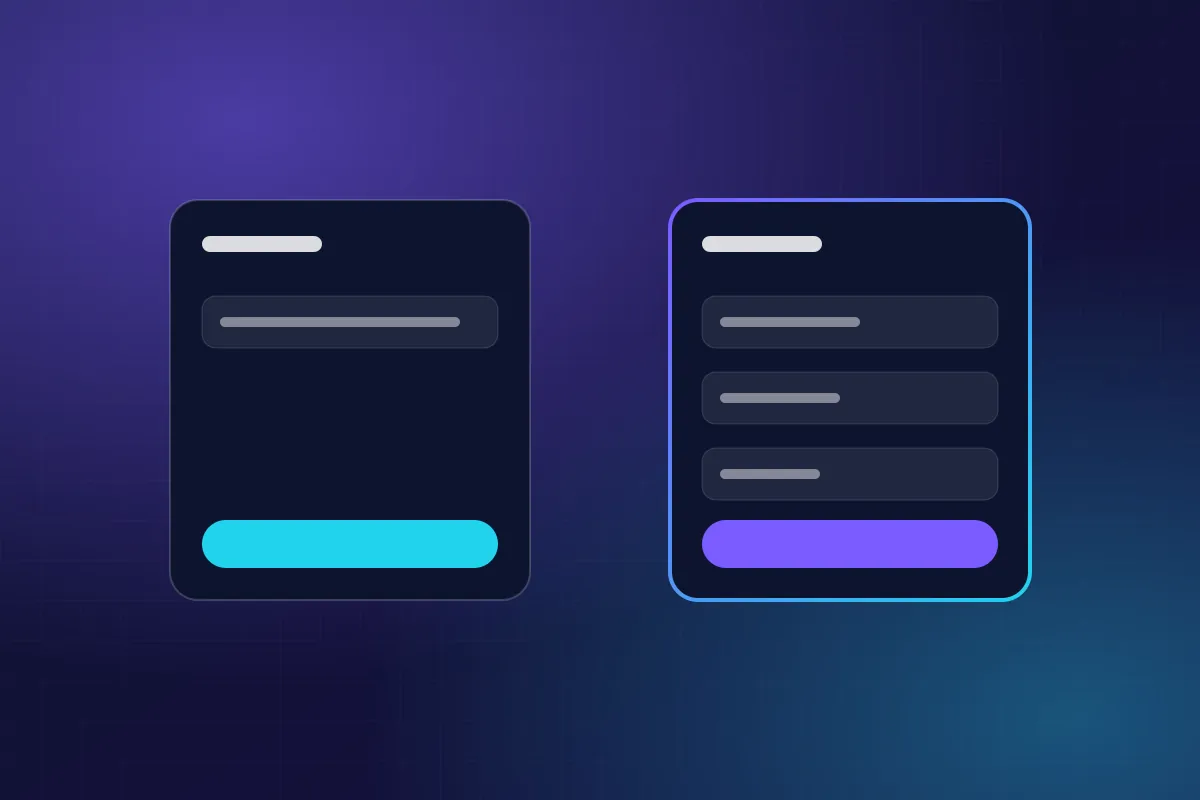
When you set up an IPTV player for the first time, one of the first things it asks is how you want to sign in. The two options you will see most often are an M3U playlist and an Xtream Codes login. Both connect your player to the same subscription and the same channels, but they work in different ways, suit different players and behave differently when something goes wrong.
Choosing the right one makes setup quicker, gives you a better programme guide and makes problems easier to fix. This guide explains what each login type is, how they compare, which one to use on each device, how to enter them correctly and how to troubleshoot the errors people run into most. It also covers the third method you may come across, the MAG portal, and how to keep your login details safe.
ProtoIPTV provides Xtream Codes and M3U login details, plus portal addresses for MAG boxes, so the examples here reflect what you will see with our service.
Why IPTV services use login details at all
An IPTV subscription is access to a set of live streams. Your player app needs two things to show them: a list of what is available, and permission to play it. Login details provide both.
Rather than building a dedicated app for every TV, stick and phone on the market, most IPTV services hand out credentials that work in a wide range of third-party player apps. This is what makes IPTV so flexible. The same subscription can run on a Fire TV Stick, a Samsung TV, an iPhone and a laptop, each using whichever player suits that device best.
The login type is simply the format those credentials come in. M3U and Xtream Codes are the two formats that almost every IPTV player understands.
Where the two formats come from
The two login types have very different origins, which explains a lot about how they behave.
M3U began as a simple playlist format for audio files in desktop music players. Its job was to list tracks in order, one per line. Because the format is just text, it was easy to extend: extra fields for names, groups and logos were added on the information line, and the file locations became web addresses for live streams. That heritage is why almost any media player can open an M3U playlist, and also why the format has no built-in way to deliver extras such as account information.
Xtream Codes takes its name from server software used to manage IPTV services. The software exposed a standard way for player apps to ask a server for categories, channels, guide data and account details. Player developers built support for that method, and many IPTV services today use servers that support the same login, so the name has stuck even though the method is now used far more widely than the original software.
In short: M3U is a universal list, while Xtream Codes is a conversation between the player and the server. Everything else in this guide follows from that difference.
What is an M3U playlist?
M3U is a plain-text playlist format that has been used for audio and video for many years. In IPTV, an M3U playlist lists every channel in your subscription along with the address of each stream.
What is inside an M3U file
An M3U playlist starts with a header line and then lists channels one after another. Each channel has two lines: an information line and the stream address. The information line can carry several useful fields.
| Field | What it holds | What the player uses it for |
|---|---|---|
| Channel name | The name shown in your list | Display |
| group-title | The category, such as Sports or News | Grouping channels into categories |
| tvg-id | An identifier for the channel | Matching the channel to its programme guide data |
| tvg-logo | A link to the channel logo | Showing logos in the list and guide |
| Stream address | The web address of the live stream | Playing the channel |
You never need to edit this file. The player reads it for you. Knowing what is inside it, though, explains why an M3U playlist can show categories, logos and guide data when everything is set up correctly.
M3U and M3U8
You may see both M3U and M3U8 mentioned. M3U8 is the same playlist format saved with UTF-8 text encoding, which handles accented letters and non-Latin characters properly. The extension M3U8 is also used for a type of streaming playlist that breaks video into small segments. For the purpose of signing in to a player, you can treat the two as the same thing: if a player asks for an M3U or M3U8 link, it wants your playlist link.
How an M3U link works
With IPTV, you are rarely given the file itself. Instead you get a link, a single web address that the player downloads the playlist from. Each time the player refreshes, it downloads the latest version, so channel changes reach you automatically.
That link often includes your username and password inside the address. This is convenient, because one link is all you need, but it also means the link should be treated as a password in its own right.
Advantages of M3U
- Almost universal. Nearly every IPTV player supports M3U, and so do general media players such as VLC.
- One thing to enter. A single link rather than three separate fields.
- Easy to move between players. Paste the same link into a different app to try it.
Disadvantages of M3U
- Long links are awkward on a TV remote. Typing a long address character by character with an on-screen keyboard is slow and easy to get wrong.
- The guide may need a separate link. Some playlists include a reference to the guide data; others need an EPG link entered separately.
- Large playlists can be slow. The player downloads the whole list each time it refreshes, which can take a while on older devices.
What is an Xtream Codes login?
Xtream Codes is a login method used by many IPTV services. Instead of a single playlist link, you get three short pieces of information.
The three fields
- Server address (sometimes called URL, host or portal URL): the address of the IPTV server, usually starting with http:// and often ending with a port number after a colon, such as :8080.
- Username: your account name.
- Password: your account password.
Some players also ask for a playlist name. That is just a label for your own reference and can be anything, such as “ProtoIPTV”.
How it works behind the scenes
When you sign in with Xtream Codes, the player talks to the server directly. Rather than downloading one large playlist, it asks the server for specific information as it needs it: the list of categories, the channels in each category, the programme guide and account details such as your connection limit and expiry date.
This is why Xtream Codes logins often feel faster and more organised. The player can load categories quickly and fetch guide data automatically, without you entering anything extra.
Advantages of Xtream Codes
- Short and easy to type. Three short fields are much easier to enter with a remote than a long link.
- Programme guide loads automatically. The guide usually comes through the same login.
- Better organisation. Categories and, where available, other sections load cleanly.
- Account information. Many players show your expiry date and connection limit.
Disadvantages of Xtream Codes
- Dedicated IPTV players only. General media players such as VLC do not support it.
- Three things to get right. A typo in any of the three fields, including the port number, stops the login working.
M3U vs Xtream Codes: side-by-side comparison
| Feature | M3U playlist | Xtream Codes |
|---|---|---|
| What you enter | One link | Server address, username and password |
| Ease of typing on a TV remote | Harder: long link | Easier: short fields |
| Player support | Almost every IPTV player plus VLC | Dedicated IPTV players |
| Programme guide | Sometimes needs a separate EPG link | Usually loads automatically |
| Categories | From group titles in the playlist | Loaded directly from the server |
| Account details shown in player | Rarely | Often, such as expiry date |
| Loading on older devices | Can be slow with large playlists | Usually quicker |
| Best for | VLC, players without Xtream support, quick tests | Everyday use on TVs, sticks and phones |
The short answer
If your player supports Xtream Codes, use it — the setup guide for your device shows where to enter it. It is easier to enter, loads the guide automatically and usually performs better. Use the M3U link for general media players such as VLC, for players that do not offer Xtream Codes, or as a quick alternative if one method gives you trouble.
Which login type to use on each device
The best choice depends on the device and the players available for it.
Amazon Fire TV and Fire TV Stick
Most IPTV players in the Amazon Appstore support both methods. Xtream Codes is usually the better choice because it is quicker to type with the Fire TV remote. See the Fire TV Stick setup guide.
Android TV and Google TV
Android TV players offer a wide choice, and most support both login types. Use Xtream Codes for everyday viewing. See the Android TV guide.
Samsung and LG Smart TVs
Smart TV players vary. Some let you sign in on the TV with either method. Others show a device ID or MAC address and ask you to add your playlist on the player’s website, where you can usually paste an M3U link or enter Xtream Codes details from a computer or phone. That web-based method is a big help with long M3U links. See our Samsung and LG guides.
Apple TV, iPhone and iPad
Players from the App Store generally support both. Xtream Codes is easier on Apple TV; on iPhone and iPad, where you have a full keyboard and can paste, either works well. See the Apple TV and iPhone and iPad guides.
Android phones and tablets
Most players from Google Play support both, and copying and pasting makes M3U links easy on a phone. See the Android guide.
Windows PC and Mac
Dedicated IPTV players on computers usually support both. If you use VLC, only the M3U link will work: open Media → Open Network Stream on Windows, or File → Open Network on Mac, paste the link and play. See the Windows and Mac guides.
MAG set-top boxes
MAG boxes use neither method. They use a portal, described below.
The third option: MAG portals
MAG boxes are dedicated IPTV set-top boxes that connect to a portal rather than using a player app with a playlist or login.
How portal login works
Every MAG box has a unique MAC address printed on a label underneath it. With portal-based IPTV, your subscription is linked to that MAC address. The process looks like this:
- You send the MAC address on the box label to your provider.
- The provider links it to your subscription and gives you a portal address.
- You enter the portal address in the box settings, usually under Settings → System settings → Servers → Portals.
- You restart the portal, and the box loads your channels and guide.
Advantages and limitations
The portal method is simple once set up, because there is nothing to type on the box except the portal address. The trade-off is that it is tied to one physical box. If you replace the box, the new MAC address has to be registered first. Our MAG installation guide walks through every step.
How to enter your login details correctly
Most login problems come from small typing mistakes. A careful approach avoids nearly all of them.
Entering an Xtream Codes login
- Open the player and choose the option to add a playlist or user.
- Select Xtream Codes, sometimes labelled Xtream Codes API or Login with Xtream.
- Enter a playlist name of your choice.
- Enter the server address exactly as supplied, including http:// and the port number if one is given.
- Enter the username and password, checking capital letters.
- Save and wait for the channels to load.
Entering an M3U link
- Open the player and choose to add a playlist.
- Select M3U, M3U URL or Load from URL. Avoid options for loading a file stored on the device.
- Enter or paste the full link exactly as supplied.
- If the player has a field for an EPG link and you have one, enter it too.
- Save and wait for the playlist to load.
Tips for typing on a TV remote
- Use a phone keyboard. Several streaming platforms have official phone apps that act as a remote with a full keyboard, which is far quicker than an on-screen keyboard.
- Use web activation where offered. Some Smart TV players let you add your details on a website from your phone or computer.
- Choose Xtream Codes. Three short fields are much easier than one long link.
- Check look-alike characters. Lowercase l, capital I and the number 1, or capital O and zero, are easy to mix up.
Worked examples on three devices
Seeing the same subscription set up on different devices makes the choice between login types clearer.
A Fire TV Stick with Xtream Codes
Priya has a Fire TV Stick in the living room. She installs a player from the Amazon Appstore, chooses the Xtream Codes option and enters a playlist name, the server address with its port, her username and her password. Typing three short fields with the remote takes a minute or two. The player loads the categories, then the programme guide fills in automatically a few minutes later. She adds her regular channels to favourites and is watching within a few minutes of opening the app.
Why Xtream Codes worked best here: short fields on a remote, and the guide arrived without any extra steps.
A Samsung Smart TV with web activation
Tom’s Samsung TV has a player that shows a device ID on its first screen instead of a login form. On his laptop, he opens the player’s official website, enters the device ID and pastes his M3U link. He restarts the app on the TV and the channel list appears. Because the player also needs guide data, he adds the EPG link support gave him in the same web form.
Why M3U worked well here: pasting a long link on a laptop is easy, so the main drawback of M3U disappeared.
A laptop with VLC
Maria wants to watch on her laptop while travelling. She already uses VLC for videos, so she opens Media → Open Network Stream, pastes her M3U link and presses Play. The first channel starts, and she opens the playlist view to switch between channels. There is no programme guide in VLC, so for evenings when she wants the guide she installs a dedicated IPTV player and signs in with Xtream Codes instead.
Why both had a place: M3U for the quick, familiar option in VLC, Xtream Codes in a dedicated player when the guide matters.
Performance on low-powered devices
On a modern phone or a recent streaming device, both login types feel fast. On older or entry-level devices, the difference can be noticeable.
With an M3U playlist, the player downloads and processes the entire channel list every time it refreshes. For a large line-up, that is a lot of text to read on a device with limited memory, and it can make the first load, or every refresh, feel slow.
With Xtream Codes, the player can request only what it needs, such as the categories first and then the channels in the category you open. That tends to be lighter on memory and quicker to show something on screen.
If your device feels sluggish when loading channels:
- Try the Xtream Codes login if you have been using M3U.
- Clear the player’s cache and free some storage on the device.
- Reduce how often the playlist and guide refresh, if your player allows it.
- Consider a more capable streaming device if the TV’s built-in apps are struggling.
Our guide to fixing IPTV buffering covers device maintenance in more detail.
Common mistakes to avoid
Most login trouble comes from a short list of mistakes:
- Choosing “M3U file” instead of “M3U URL”. File options expect a playlist stored on the device. You have a link, so choose the URL option.
- Leaving out the port. If the server address you were given ends with a colon and a number, that number is required.
- Mixing up login types. Xtream Codes details go in the Xtream Codes form, M3U links in the M3U form.
- Copying extra spaces. Spaces copied at the start or end of a username, password or link cause failures that are hard to spot.
- Cutting a long link short. Some on-screen keyboards or text fields truncate long M3U links. Check the end of the link matches what you were sent.
- Using an old link. If support has sent you updated details, remove the old playlist from the player to avoid confusion.
- Installing players from unknown sources. Stick to official app stores to keep your details and device safe.
Questions to ask support about your login
If you are unsure which details to use, a quick message saves time. Useful questions include:
- Which login types apply to my subscription: Xtream Codes, M3U, a MAG portal or more than one?
- Which player do you recommend for my exact device model?
- Is there a separate EPG link for my M3U playlist?
- Does my server address use a specific port?
ProtoIPTV support is available 24/7 on WhatsApp and can answer all of these for your specific setup. You can also browse the FAQ for common answers.
Troubleshooting login errors
If the player refuses your details or loads nothing, work through these common causes.
“Invalid username or password” or “Authentication failed”
- Re-enter the details by hand, checking capitals and look-alike characters.
- Make sure there are no spaces before or after the username and password, which can creep in when copying and pasting.
- Confirm you are using the details for the right login type. An Xtream Codes username and password cannot be pasted into an M3U field.
The server cannot be reached
- Check the server address includes http:// at the start.
- Check the port number. A missing or wrong port is one of the most common errors.
- Make sure you typed http rather than https, or the other way round, exactly as supplied.
- Test your internet connection by opening another app.
The playlist loads but shows no channels
- Wait. Large playlists can take a while on the first load.
- Restart the player and try again.
- If you used an M3U link, check the whole link was entered, as long links are sometimes cut off.
Channels load but the guide is empty
This is a guide problem rather than a login problem. With M3U, you may need a separate EPG link. Our EPG guide covers every common cause and fix.
The player says the account has expired
Check when your subscription ends. If it should still be active, contact support with the details you are using so they can check the account.
Streams stop when someone else starts watching
Your plan allows a set number of simultaneous connections. If more devices try to stream at once, one will stop. This is the connection limit working as intended. If it happens often, a plan with more connections is the answer; see the pricing page for options for one, two or three devices.
Keep your login details private
Your login details are tied to your subscription and its connection limit, so they deserve the same care as any other password.
- Do not share them. If someone else uses your details, they use up your connections, and your own streams can stop when you want to watch.
- Remember that M3U links contain your credentials. Anyone with the link can use it, so do not post it in public places or forums.
- Only enter them in trusted apps. Install players from official app stores, such as the Amazon Appstore, Google Play, the App Store, Samsung Apps or the LG apps store, rather than from unknown sources.
- Be wary of websites that ask for your playlist. Only use web activation pages belonging to the player you have installed.
- Remove old devices. Delete the playlist from devices you no longer use.
If your details have been exposed
If you think someone else has your login details, for example because you shared a link or entered it on a website you no longer trust, act quickly:
- Contact support and explain what happened, so they can check the account and advise on next steps.
- Remove the playlist from any device you do not control or no longer use.
- Once you receive updated details, if any are issued, add them to your own devices and delete the old playlist.
Signs that someone else may be using your details include streams stopping unexpectedly when no one else in your home is watching, or the player reporting that the maximum number of connections is in use.
Switching between login types
You are not locked into the method you chose first. Most players let you add more than one playlist, so you can add both an Xtream Codes login and an M3U link and compare them. Some people use Xtream Codes on the TV and M3U in VLC on a laptop.
Because both methods point to the same subscription, switching does not change your channels. It only changes how the player loads them. Just remember that each device streaming at the same time counts towards your connection limit, whichever login type it uses — see how connection limits work.
Frequently asked questions
Is Xtream Codes better than M3U?
For most people using a dedicated IPTV player, yes. It is easier to type, loads the guide automatically and usually performs better. M3U is the better choice for VLC and for players that do not support Xtream Codes.
Do M3U and Xtream Codes give different channels?
No. Both connect to the same subscription and the same channel line-up. They differ in how the player loads the channel list, not in what you can watch.
Can I use both at the same time?
You can add both to your devices. The number of devices that can stream at once is still set by your plan’s connection limit.
Why does my player ask for a port?
Many IPTV servers use a specific port, shown after a colon at the end of the server address. Some players have a separate port field; others expect it as part of the address. Enter it exactly as supplied.
Can VLC use an Xtream Codes login?
No. VLC plays M3U playlist links. To use Xtream Codes, install a dedicated IPTV player.
What is “M3U Plus”?
Some services offer two versions of the playlist link. The “plus” version includes extra information on each channel line, such as logos and group titles, which gives a better-organised channel list. If you are offered both and your player supports it, the plus version is usually the better choice.
Why do I see every channel twice?
You have probably added the same subscription to the player twice, for example once with Xtream Codes and once with an M3U link. Delete one of the playlists, or switch between them in the player’s settings rather than loading both at once.
Can I use my login on a device that is not in your guides?
Often, yes. If the device can run an IPTV player that accepts M3U playlists or Xtream Codes logins, your details should work. Ask support before relying on an unlisted device, and check the supported devices page for the platforms we cover with step-by-step guides.
Which login details does ProtoIPTV provide?
ProtoIPTV provides Xtream Codes and M3U login details, and portal addresses for MAG boxes. Support will tell you which applies to your subscription and which player works best on your device.
Picking the right login for your setup
M3U playlists and Xtream Codes logins are two routes to the same place. M3U is universal and simple to paste; Xtream Codes is shorter to type, brings the programme guide with it and usually feels more organised. MAG boxes take a third route through a portal linked to the box itself.
For most people on a TV, streaming stick or phone, Xtream Codes is the best starting point, with the M3U link kept as a backup and for VLC. Enter your details carefully, keep them private and use the troubleshooting steps above — or ask support — if anything refuses to load.
Find the step-by-step setup guide for your device, with both login methods explained.
IPTV setup guidesWritten by the ProtoIPTV team. Questions about this article? Contact us.